---
title: "How to: Prepare your Artwork"
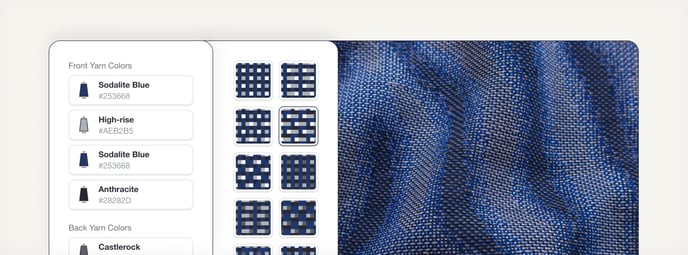
description: You can customize your own textile by applying your unique artwork to it. Discover the requirements, best practices, and recommendations for file set-up in Create™.
---
[Skip to content](https://help-center.byborre.com/knowledge/draft-how-to-set-up-artwork-files-pngs-for-create#main-content)
English
Show submenu for translations
![Frame 29612267-2.png\]](https://help-center.byborre.com/hs-fs/hubfs/Frame%2029612267-2.png?height=41&name=Frame%2029612267-2.png)
Open main navigation
Close main navigation
- English
Show submenu for translations
Create™ Help Center
- There are no suggestions because the search field is empty.
1. [Help Center](https://help-center.byborre.com/knowledge?hsLang=en)
2. [How To's](https://help-center.byborre.com/knowledge/how-tos?hsLang=en)
# How to: Prepare your Artwork
## You can customize your own textile by applying your unique artwork to it. Discover the requirements, best practices, and recommendations for file set-up in Create™.
### 
### Design Tools and File Set-Up
- **Design tools**: Prepare your artwork as a .png file using Adobe Illustrator, Adobe Photoshop or any similar design tool.
- **File specifications:**
- **Resolution**: 10px /cm
- **Dimensions**:1488 px (width) x 1008 px (height)
- **Details**: Ensure elements are at least 4px widh/high to ensure optimal visibility and safety of knit
- **File size**: Max.4 MB
- **File orientation:** Landscape
- **Upload:** Once your file is ready, upload it to Create™. The platform will automatically separate your artwork into editable layers that allow you to apply different colors and patterns.
- **Advanced option:** For full control, you can manually reduce the colors of your artwork (up to 12) and upload each layer separately.
Please see the details below, including an instructional video:
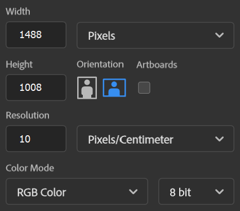
For best results make sure each color is solid (A) without any soft edges (B).

Here is a brief tutorial on how to use our platform:
### Artwork Repeat
Our textiles are knitted on a fabric roll. If your textile is meant for production, make sure to have a repeatable design.
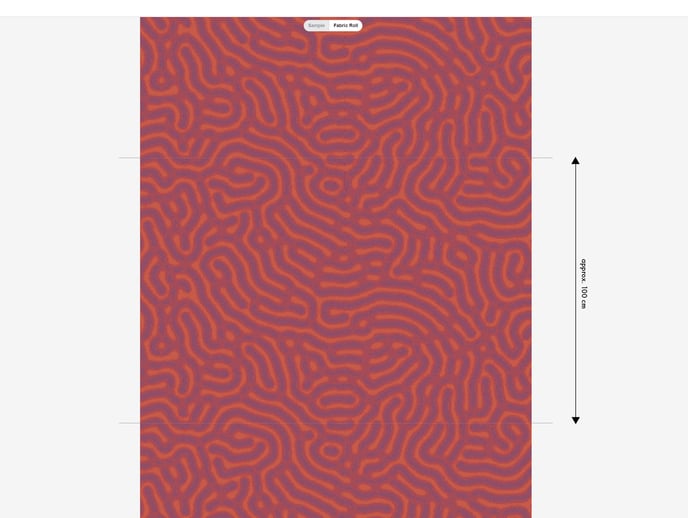
The Create™ canvas measures 1488px by 1008px. This will translate to a physical sample of approx. 140cm by 100cm. Your pattern or artwork will repeat every 1 meter (or 1008px).
Learn More: [What is a Repeat?](https://help-center.byborre.com/knowledge/what-is-a-repeat?hsLang=en)
You can preview how your pattern repeats on the fabric roll by clicking **"Fabric Roll"** at the top of your sample canvas. The fine line shows you where your artwork ends. See an example below:
### Can I resize a PNG file in Create™?
Please prepare all PNG files to match the exact size of the Create™ canvas (1488px by 1008px). Use a design tool like Photoshop or Illustrator to scale and position your shapes beforehand.
### Troubleshooting
If you experience any problem with uploading your PNGs in Create™ please check the following:
1\. Make sure you are using the **Google Chrome** browser for best results.
2\. Check your internet connection and refresh the browser to make sure you are logged in to Create™.
3\. Make sure that the size of PNG is not larger than **4MB.**
4\. If the upload is successful but your PNG isn't visible on the canvas, adjust the [Micro Pattern](https://help-center.byborre.com/knowledge/building-color-palettes/what-are-micro-patterns?hsLang=en) of your layer (it must differ from the base or lower layer to be visible).
- [How To's](https://help-center.byborre.com/knowledge/how-tos?hsLang=en)
- [Create™ Updates](https://help-center.byborre.com/knowledge/create-updates?hsLang=en)
- [Impact](https://help-center.byborre.com/knowledge/impact?hsLang=en)
- [Textile Application Guide](https://help-center.byborre.com/knowledge/textile-application-guide?hsLang=en)
# BYBORRE
Copyright © 2024 BYBORRE All Rights Reserved
Copyright © 2026, BYBORRE
```json
{
"@context" : "https://schema.org",
"@type" : "VideoObject",
"contentUrl" : "https://20009495.fs1.hubspotusercontent-na1.net/hubfs/20009495/HelpCenter/Help%20Center%20-%20How%20To%20Prepare%20Your%20Artwork.mp4",
"dateModified" : "2024-08-12T09:19:19.305Z",
"duration" : "PT28S",
"height" : 1882,
"name" : "Help Center - How To Prepare Your Artwork",
"thumbnailUrl" : "https://20009495.fs1.hubspotusercontent-na1.net/hubfs/20009495/HelpCenter/Help%20Center%20-%20How%20To%20Prepare%20Your%20Artwork.mp4/medium.jpg",
"uploadDate" : "2024-08-12T09:18:31.924Z",
"width" : 3020
}
```